
DIVEROUT

Apple Watch Setup Guide

Step-by-step instructions for setting up and using DIVEROUT on your Apple Watch.

Quick Start

Auto Launch settings

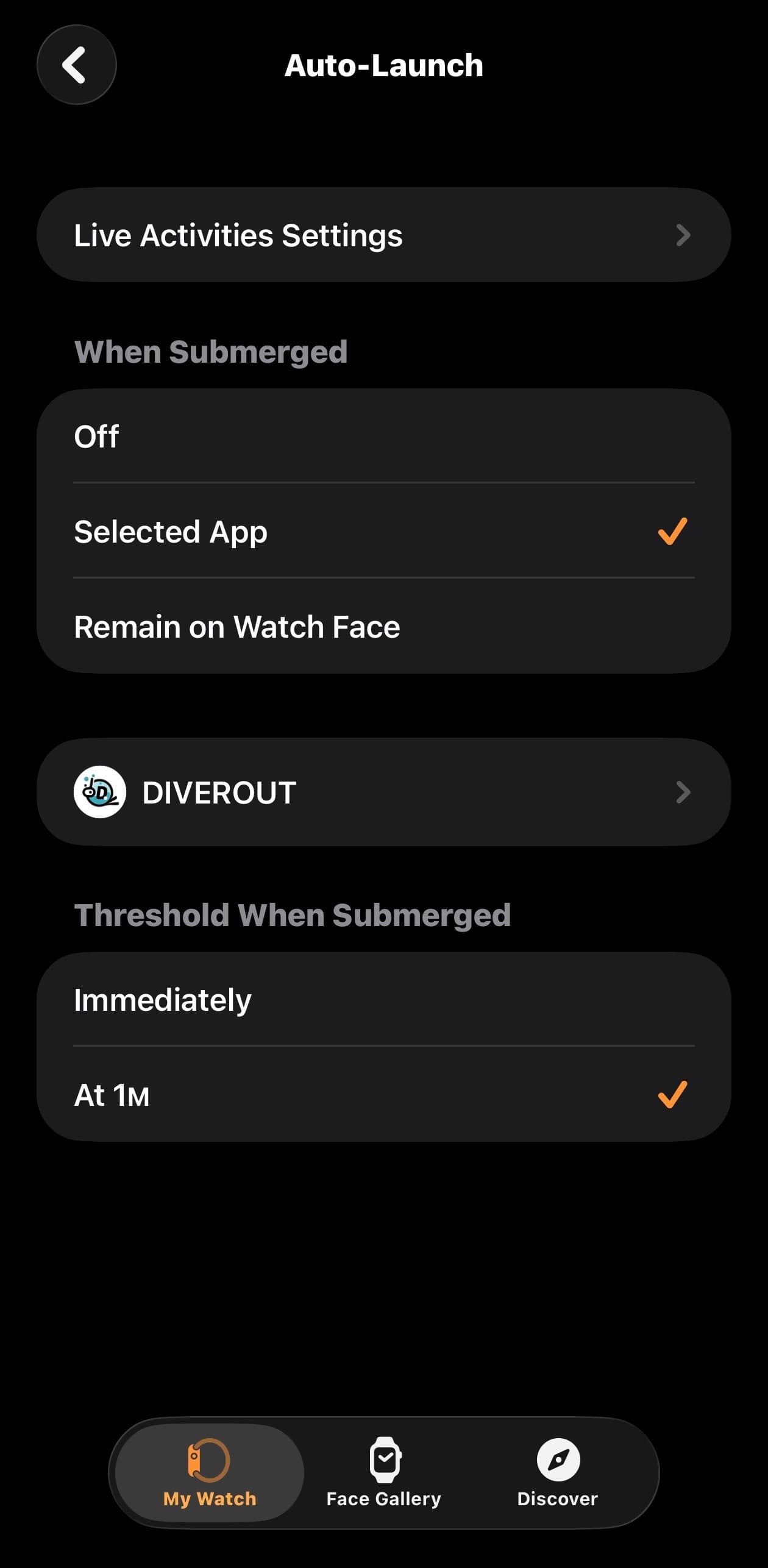
Auto Launch

After Auto Launch is enabled, Apple Watch will open DIVEROUT automatically when you enter the water.
  1. 1Open the Watch app on your iPhone.
  2. 2Go to General.
  3. 3Open Auto Launch.
  4. 4Select DIVEROUT under Selected App.
Action Button settings

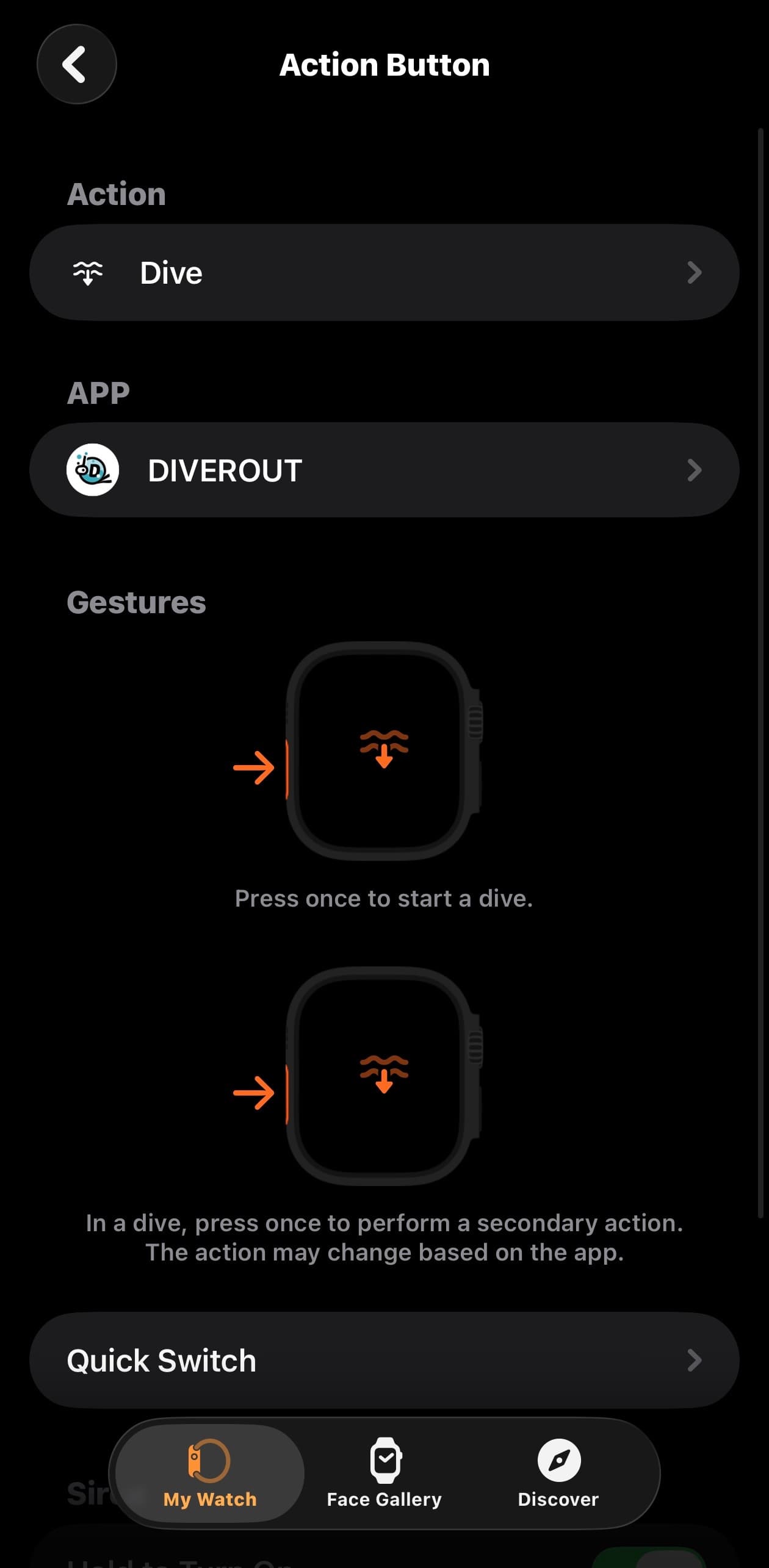
Action Button

Press the Action Button to quickly open the DIVEROUT app. In the app, you can also use it to adjust tank pressure or mark a compass location.

  1. 1Open the Watch app on your iPhone.
  2. 2Tap Action Button.
  3. 3Set Action to Dive.
  4. 4Set the app to DIVEROUT.

Default Dive Mode

Auto Launch and Action Button depend on your default Dive Mode. Your default Dive Mode decides which mode will launch through Auto Launch and Action Button.

  1. 1Open Settings on your Apple Watch.
  2. 2Find the Auto Launch or Auto Start setting.
  3. 3Tap it to choose whether you want Scuba Diving, Free Diving, or Snorkeling.
  4. 4This setting will affect which dive mode opens the next time you use Auto Launch or Action Button.

Move App Position

Place Dive Rod where it is easiest for you to reach, so you can enter faster the next time you open it manually before a dive.

  1. 1Find the Dive Rod app in App List View.
  2. 2Press and drag it upward to move it to the position that feels most convenient for you.

SCUBA Diving

Pre-dive Settings

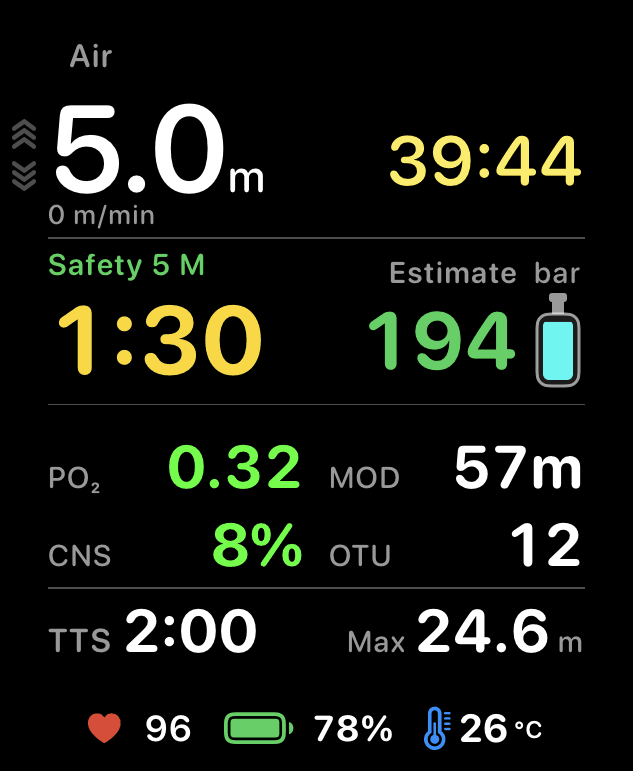
Before starting a scuba dive, ensure Gas, PO2, GF, Cylinder Size, Start Pressure, and SAC are set correctly. These values directly affect NDL, PO2, decompression calculations, and gas consumption predictions.
  1. 1On the home screen, switch to the Scuba Diving card, tap the settings button in the bottom right, and confirm O2, PO2, GF, Cylinder Size, Start Pressure, and SAC.
  2. 2After entering the pre-dive screen, you can swipe up or down to switch between Gas, Cylinder Size, Start Pressure, PO2, and GF pages.
  3. 3Press the Action Button while on the page you wish to modify to enter edit mode.
  4. 4Rotate the Digital Crown to adjust the value, and press the Action Button again to finish editing.
  5. 5Press the Action Button on the first screen to start immediately. Diving will also start automatically once you descend below 1 meter.
  6. 6To adjust vibration alerts, go to the Scuba Diving card on the main screen and tap the waveform icon in the bottom left corner to enter Haptic Settings.
Safety Stop screen

Safety Stop

This page displays both NDL and the safety stop mission. NDL indicates the No Decompression Limit, which decreases with depth. It is shown in minutes (below 5 minutes, shown in seconds). If NDL is exceeded, 'Over NDL' will appear and decompression begins.

  1. 1After the Safety Stop screen appears, the status will first show 'Ready to stop'.
  2. 2This does not mean you must perform a safety stop now, but that the dive has reached the recommended threshold for one.
  3. 3When you are ready to end your dive and ascend, return to the safety stop depth. Once at the correct depth, the safety stop will begin.
  4. 4Once completed, 'Safety Stop Done' will be displayed. If you are too deep, too shallow, or out of range for too long, the event bar will alert you and 'Missed Safety Stop' may appear.
Deco Stop screen

Deco Stop

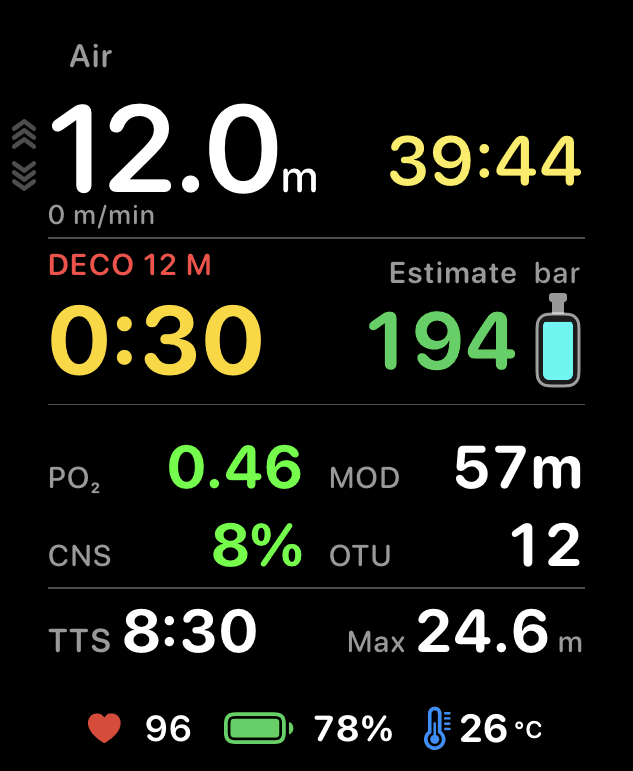
Once you enter decompression diving, you must follow the decompression instructions to complete your decompression stops.

Recreational divers should perform no-decompression dives. Never intentionally enter decompression. If you do, you must follow decompression procedures to complete it.
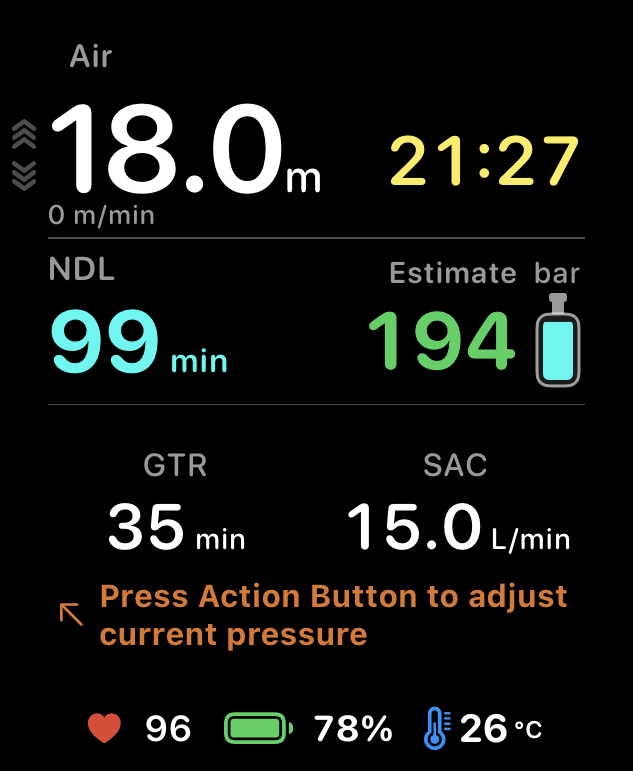
  1. 1The capsule originally showing NDL now displays the remaining NDL time.
  2. 2Once you exceed the NDL, the capsule text will change from 'No Deco' to 'Over Deco' and display the time elapsed since exceeding the limit.
  3. 3The task below will change from Safety Stop to Deco Stop, showing the required duration at the specified depth and the current TTS.
  4. 4The system determines decompression stop requirements based on your NDL exceedance time, gas configuration, and residual nitrogen levels. Multiple stops usually need to be completed in sequence.
Tank settings before calibration
Tank settings after calibration

Intelligent Gas Prediction

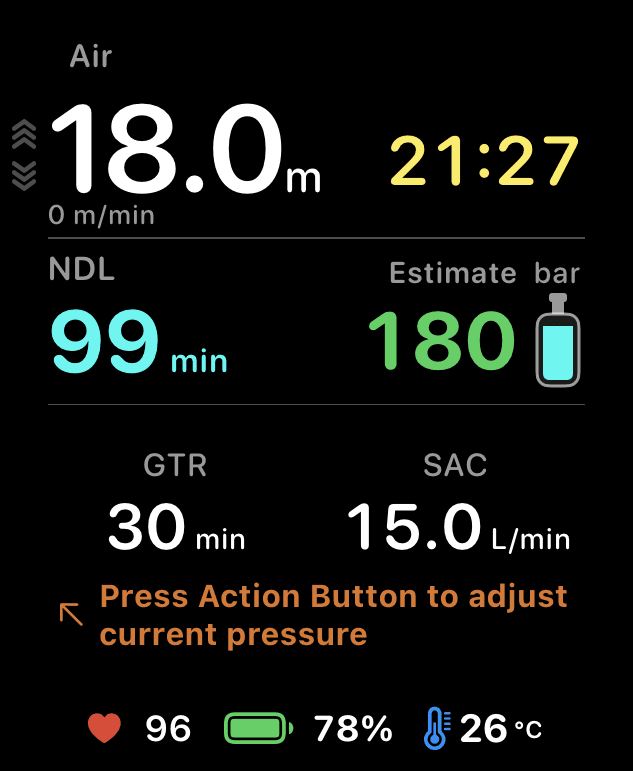
Gas intelligence prediction estimates remaining gas time and alert points based on tank capacity, starting pressure, current pressure, SAC, and your current depth.

  1. 1On your first dive, the system uses an average SAC for estimation. This is just a starting value and may not be very accurate.
  2. 2After diving, when you have time, it is recommended to switch to the Tank Info page to view residual pressure and calibrate it using the Action Button.
  3. 3It is highly recommended to calibrate before several dives, doing so at approximately 10 and 20 minutes to help the system learn your breathing rate.
  4. 4After three dives, the system typically learns your breathing rate accurately, making GTR and gas alerts more stable.

Layout and Power Saving

Display settings allow you to adjust the dynamic wave background, sub-page visibility, and order. You can also switch to the Power Saving page during a dive and use the Action Button to quickly toggle power saving mode.
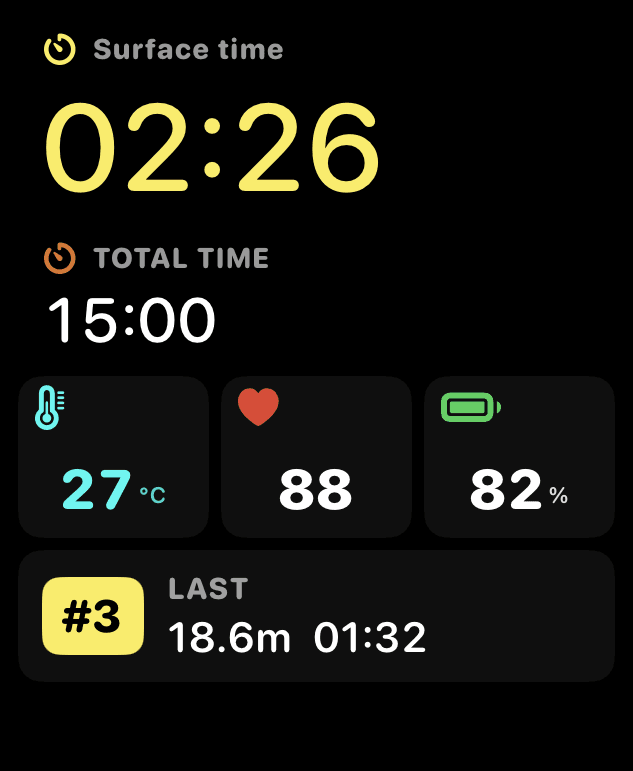
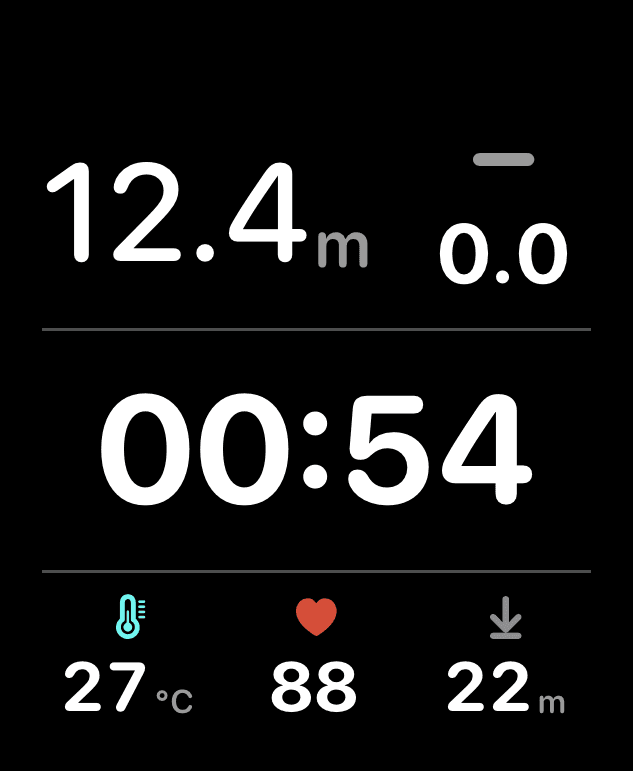
  1. 1Switch to the Scuba Diving card on the home screen, then tap the layout button in the top-left corner to open display settings.
  2. 2Disabling Dynamic Wave Background stops the wave animation, significantly reducing power consumption.
  3. 3In Sub Pages, long-press to drag and reorder NDL, Tank Info, Compass, Map, Gas Info, and Power Saving (NDL position is fixed).
  4. 4After switching to the Power Saving page during a dive, press the Action Button to toggle power saving mode.

Freediving

Freediving session screen

Session Screen

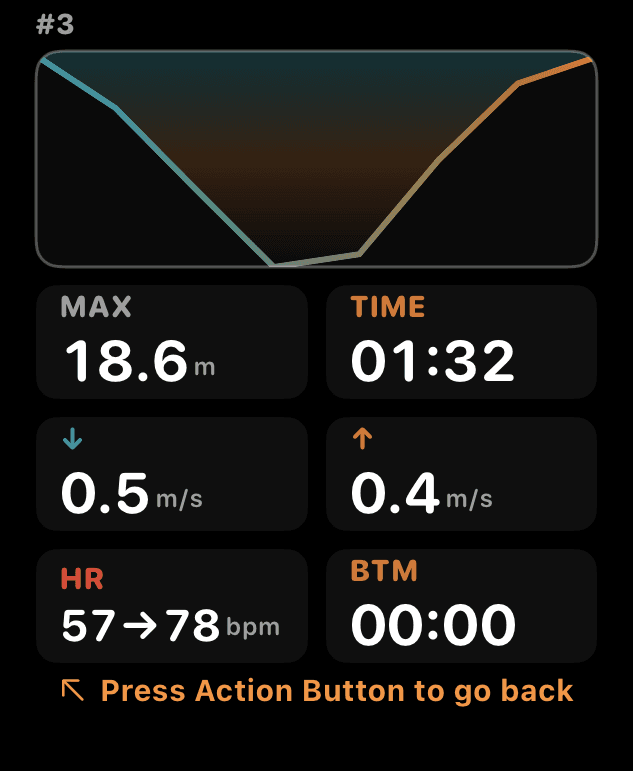
The Session page integrates dive round information, allowing you to quickly view the current round, duration, max depth, surface interval, and total session time.

  1. 1The top-left corner shows the current session number, followed by the session duration and maximum depth.
  2. 2Current Session or Last Session will be displayed below, along with Surface Time and Max Session Time.
  3. 3A new session begins when depth exceeds 1 meter and ends when you return within 1 meter.
  4. 4Each time a new session begins, the reminder status for Target, Free Fall, Mouthfill, ascent/descent depth, and dive time is recalculated.
  5. 5On the home screen, switch to the Free Diving card and tap the layout button in the top left. Disable Dynamic Wave Background to save power. Long-press and drag Sub Pages to reorder Compass, Map, and Power Saving (the Session page is fixed).

Target Depth Alert

Freediving alerts include not only Target Depth, but also Max Depth, Freefall, Mouthfill, ascent/descent depth alerts, and Dive Time. All event vibrations can be customized individually.

For freediving training, always follow buddy and safety monitoring principles. Do not rely solely on watch alerts.

  1. 1Switch to the Freediving card on the main screen, tap the settings button in the bottom right corner to adjust depth target, max depth, freefall, mouthfill, ascent, descent, and dive time alerts.
  2. 2Target, Freefall, and Mouthfill trigger when crossing the set depth. Max Depth provides continuous alerts when the limit is exceeded.
  3. 3You can add multiple depth checkpoints for Ascent/Descent Alerts, and multiple time reminders for Dive Time Alerts.
  4. 4To change vibration patterns for events, tap the waveform button in the bottom-left corner of the Free Diving card to adjust haptics for each alert.
  5. 5Alerts are calculated individually for each session and reset once the session ends.

Snorkeling

Snorkeling session screen

Compass, Map, and Layout

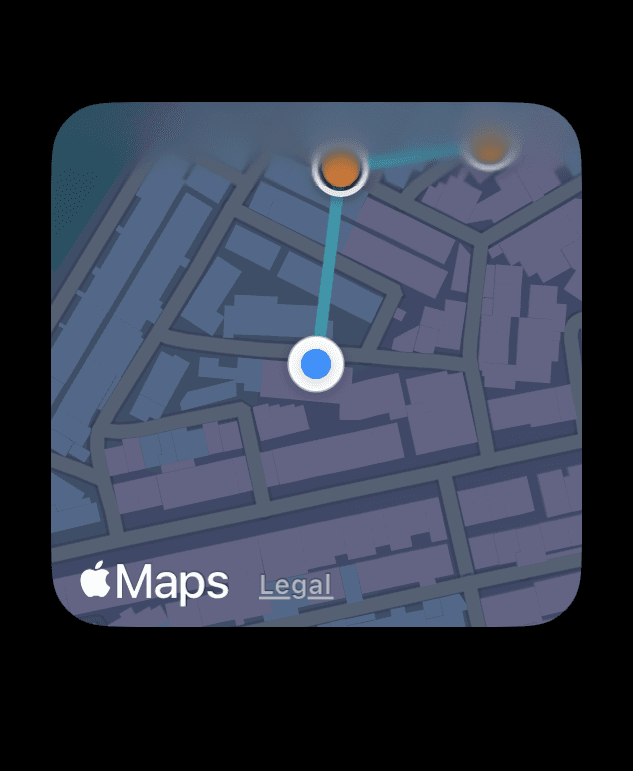
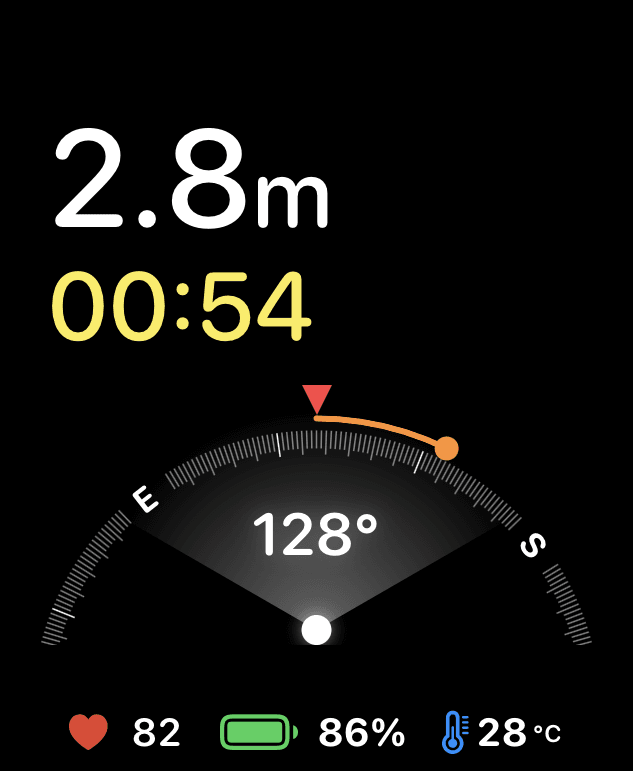
Snorkeling mode focuses on orientation and return assistance. You can mark directions on the compass page, view tracks on the map page, and adjust page order and power saving via display settings.

  1. 1During snorkeling, you can switch between the Compass, Map, and Power Saving sub-pages.
  2. 2When on the compass page, press the Action Button to set or clear the current heading to help you navigate back.
  3. 3The Map page displays your current track, which is useful for checking your direction and return position.
  4. 4Switch to the Snorkeling card on the home screen, then tap the layout button in the top-left corner to open display settings. Turning off Dynamic Wave Background can significantly save power.
  5. 5In Sub Pages, you can long-press and drag to reorder Compass, Map, and Power Saving, or toggle their visibility.